TABLE OF CONTENTS
- Sign the Authority Form using Adobe Acrobat Reader
- Sign the Authority Form using Microsoft Edge on Windows
- Sign the Authority Form using Preview on MacOS
- Sign the Authority Form using SignFree
During the initial stages of the background screening, your candidate will receive an Authority Form to sign. Here are the steps to walk them through it.
The candidate facing articles can be found here.
Sign the Authority Form using Adobe Acrobat Reader
How can the candidate correctly sign the Authority Form if they do not have a printer available and cannot sign it by hand?
1. Open the Authority Form in Adobe Acrobat DC / Adobe Acrobat Reader.
2. On the right-side menu, please select Fill & Sign.

3. An additional menu will appear at the top. Select Sign yourself and then Add signature.

4. A new window will appear. Type will be automatically selected in the menu at the top. Please select Draw instead.

5. Please Draw your signature and select Apply.
6. Drag and drop the signature to the correct place on the form. Once it's in the correct spot, click elsewhere in the form to deselect it.
7. Make sure to complete the other sections of the form (full name in capital letters, date of birth, and today's date). They can type in these sections.
Please find below examples of signatures that are not accepted (typed signatures using cursive and non - cursive fonts):


The example below shows what is not accepted and what is accepted.

Candidates can upload both a printed & wet ink signed authority form which has been scanned electronically or photographed, or a digitally signed PDF copy of the form to their Background Screening form.
Alternatively, they can reply to our email requesting the form and enclosing the document as an attachment.
Sign the Authority Form using Microsoft Edge on Windows
To open the Authority Form, you need the PDF document saved in your File Explorer.
1. Locate the Authority Form in File Explorer.
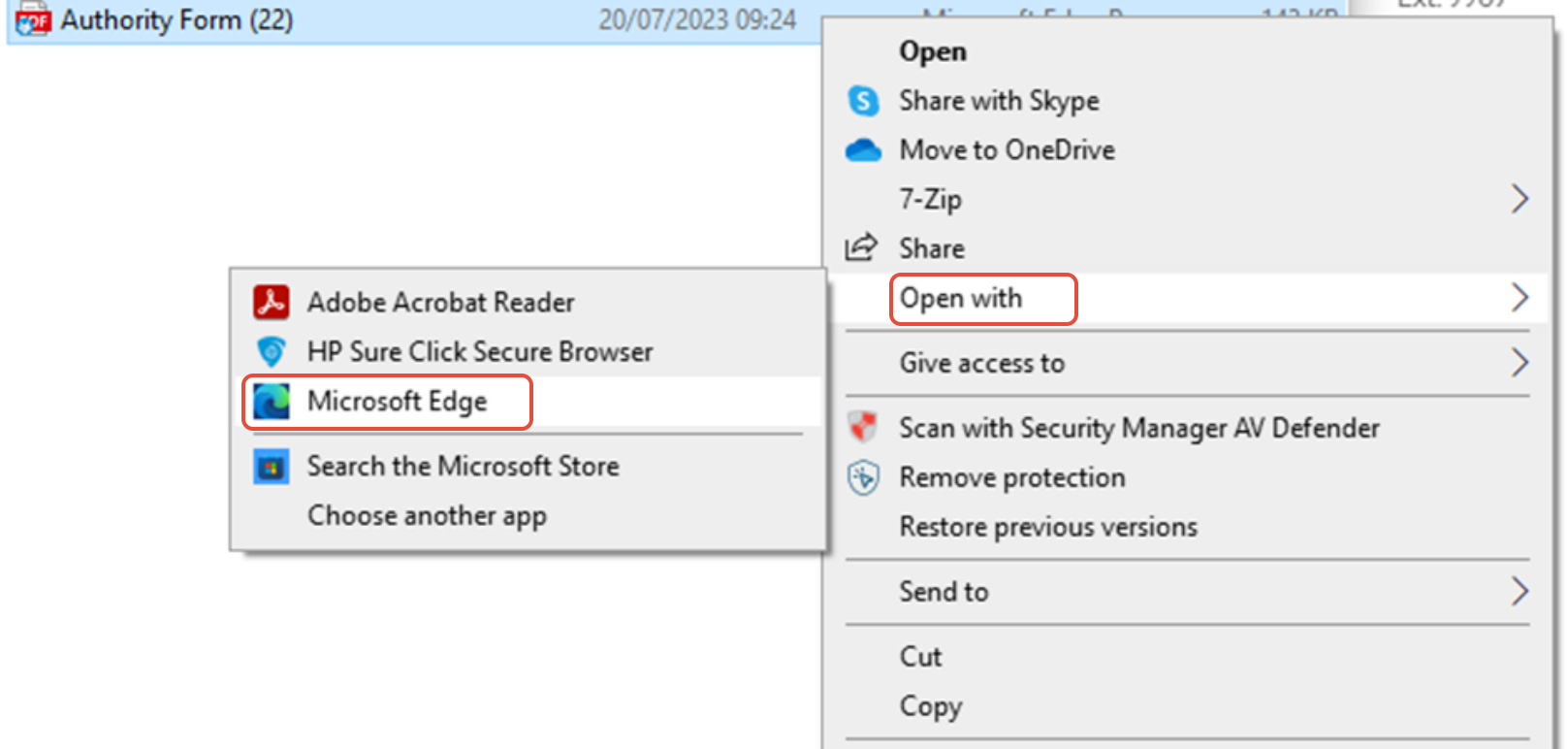
2. Right-click the document and select 'Open with' Microsoft Edge.
3. At the top of the screen, they will see a 'Draw' button. Once they've selected Draw, they can then hand sign their signature.

4. Hand sign with a mouse or stylus into the signature section as shown below.
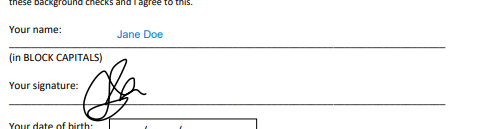
5. Once the form has been filled, click the save button in the top right corner.

6. Name and Save the completed document in File Explorer.

The candidate can upload either a printed and wet-ink signed authority form, which has been scanned electronically or photographed, or a digitally signed PDF copy of the form to their Background Screening form.
Alternatively, they can reply to our email requesting the form and enclosing the document as an attachment.
Sign the Authority Form using Preview on MacOS
To open the Authority Form, they need the PDF document to be saved in Finder from their email application.
1. Locate the Authority Form in Finder.
2. Double-click the document, and it will open in Preview.
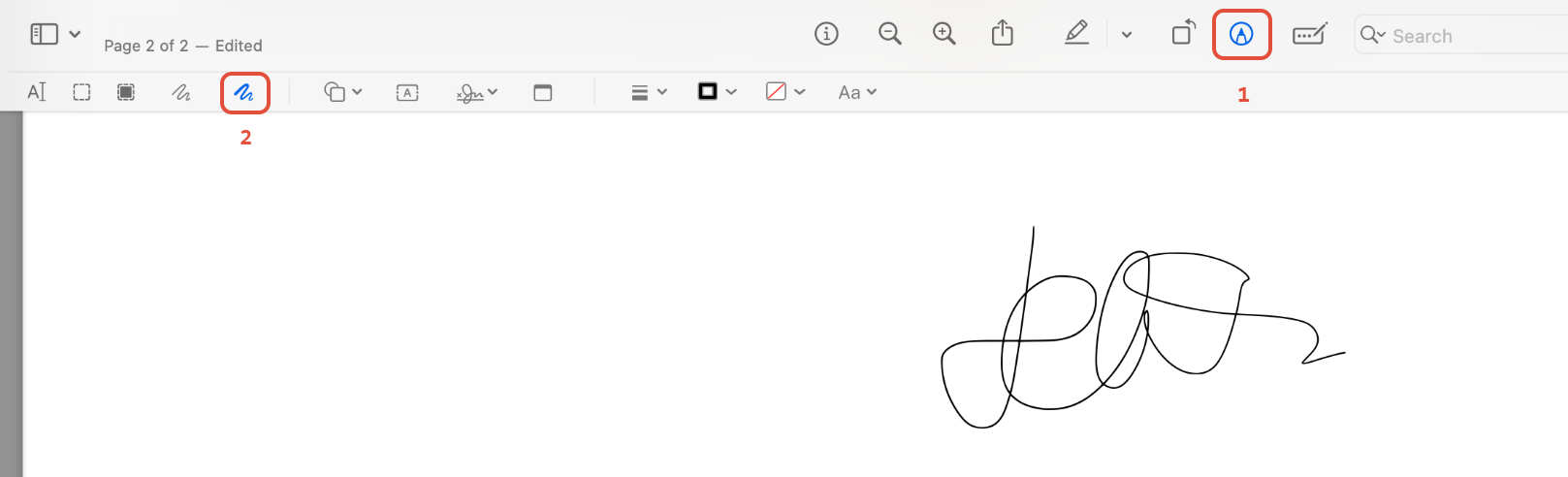
3. At the top of the screen, they'll see a 'Markup' button (1. pen in a circle). Once they have selected Markup, they can select the Draw option (2. squiggle).
4. Use Draw to Hand sign with a trackpad, mouse, or stylus into the signature section as shown below.
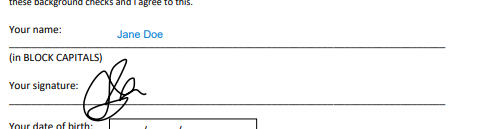
5. Once the form has been filled, click the save button in the File Menu.
The candidate can upload both a printed & wet ink signed authority form which has been scanned electronically or photographed, or a digitally signed PDF copy of the form to their Background Screening form.
Follow the guidance on how to do this at the link below:
Alternatively, they can reply to our email requesting the form and enclosing the document as an attachment.
Sign the Authority Form using SignFree
Here's how they can do that after first saving the PDF.
1. They should open http://signfree.io/ in a web browser.
2. Once they've done this, they should upload the Authority Form document by selecting the Upload document button, as seen below:
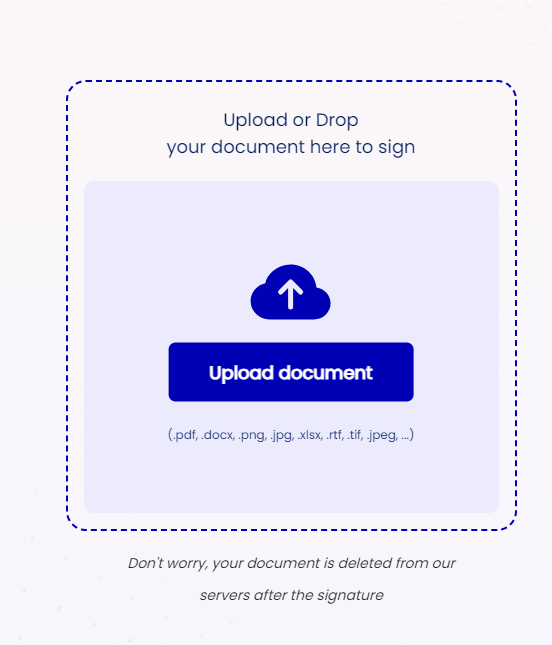
3. Windows File Explorer / Mobile Files app (Choose File or similar) / MacOS Finder will open.
4. Select the Authority Form document and select Open (Windows example below).
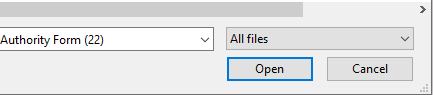
5. At the top of the page, select add a signature which will allow them to draw their signature.

6. Once they've drawn their signature into the designated box, they should click Confirm to proceed.
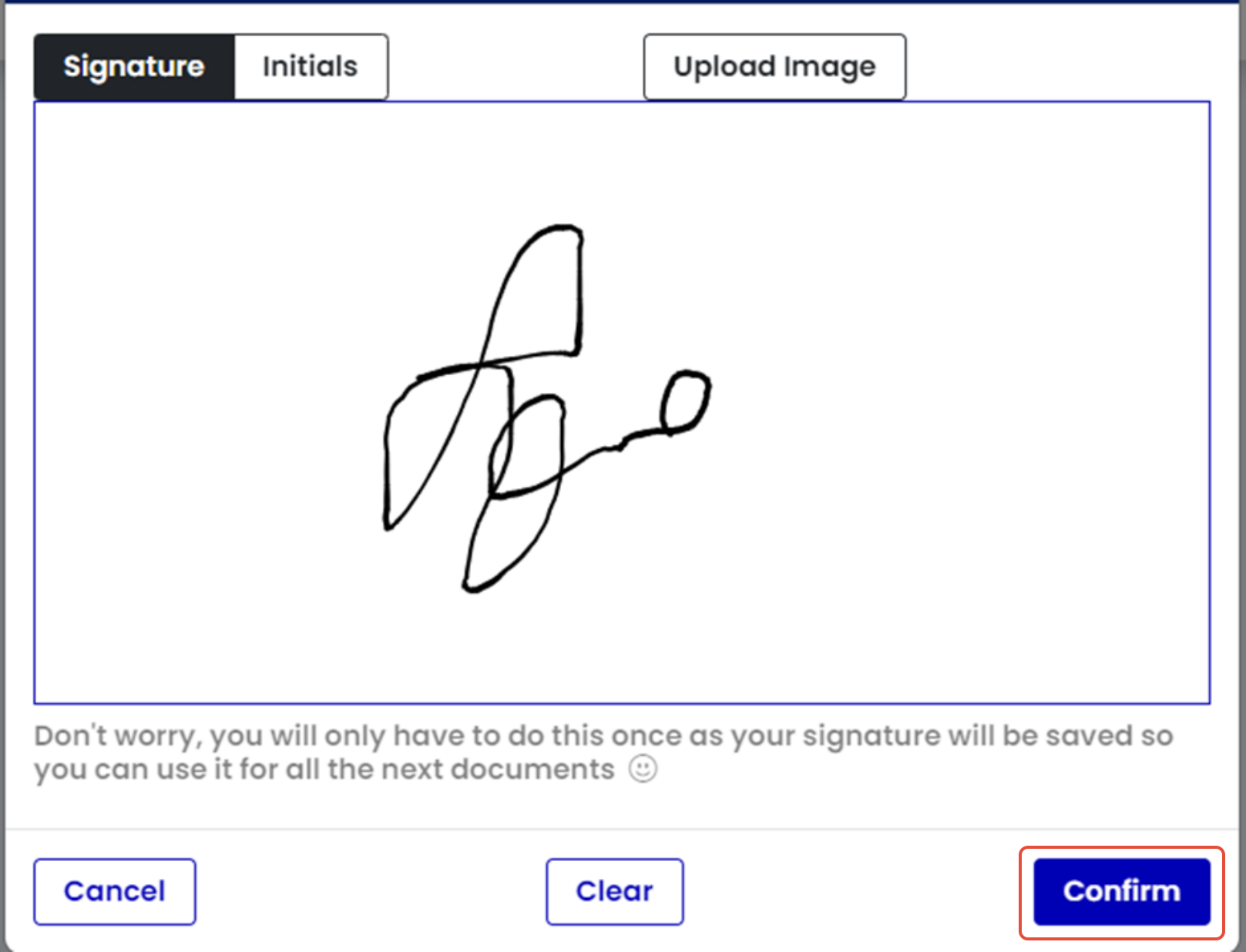
7. They can then drag your e-signature into the required field, as seen below:
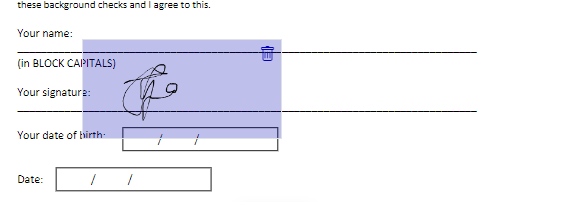
8. Once they have selected Next after filling out the form, they'll be able to download the form and/or send it to a recipient.
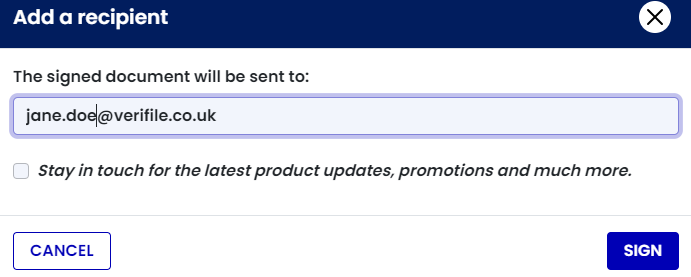
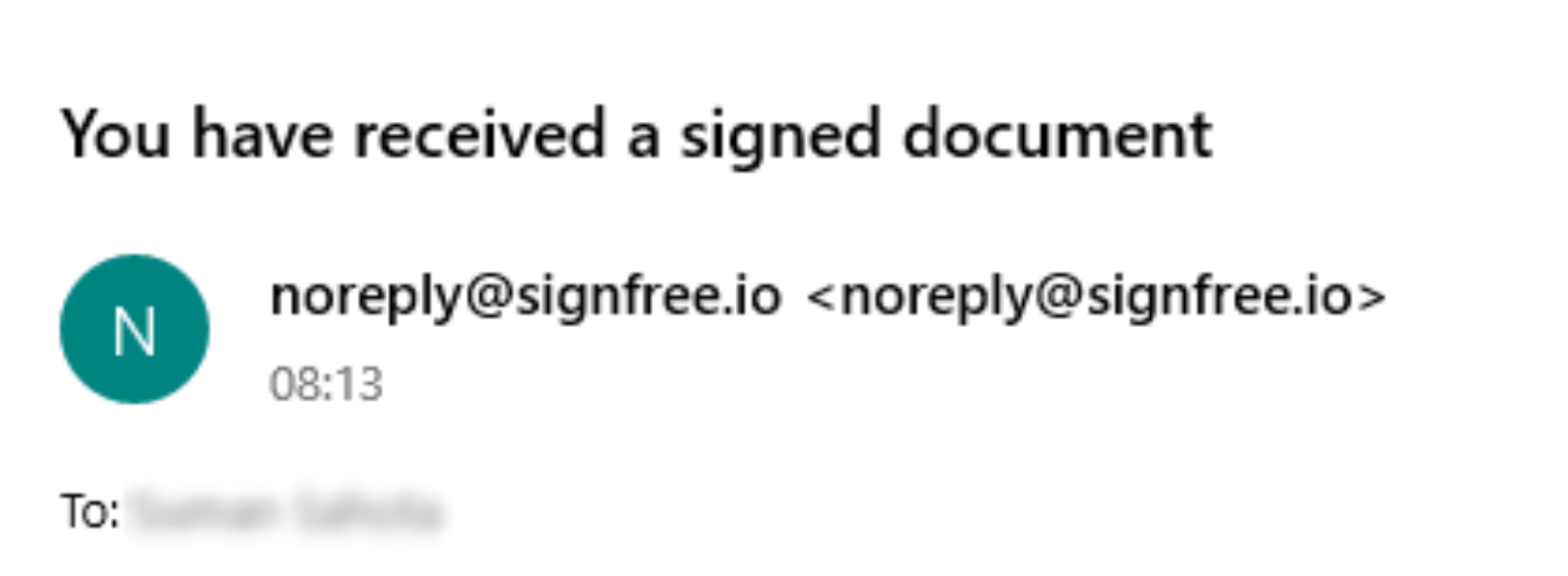
9. If they chose to email the signed document to their own mailbox, the email will arrive in their inbox as shown below. Once they have received the document, they can send/upload this to Verifile.
Your candidate can upload either a printed and wet-ink signed authority form which has been scanned electronically or photographed, or a digitally signed PDF copy of the form to their Background Screening form.
Alternatively, they can reply to our email requesting the form and enclose the document as an attachment.
RELATED CONTENT
Why does my candidate need to provide a hand signed Authority Form?
Need help?
Live Chat is available on the right, and you can self-serve via our Help Centre.
Call us at +44 (0) 1234 339 300 (Monday to Friday, 8:30 a.m. to 5:30 p.m. U.K. time).
Email hello@verifile.co.uk.
We regularly update this content to ensure its accuracy and usefulness. If something doesn’t look right, click the feedback button below and let us know.
Was this article helpful?
That’s Great!
Thank you for your feedback
Sorry! We couldn't be helpful
Thank you for your feedback
Feedback sent
We appreciate your effort and will try to fix the article