TABLE OF CONTENTS
Introduction
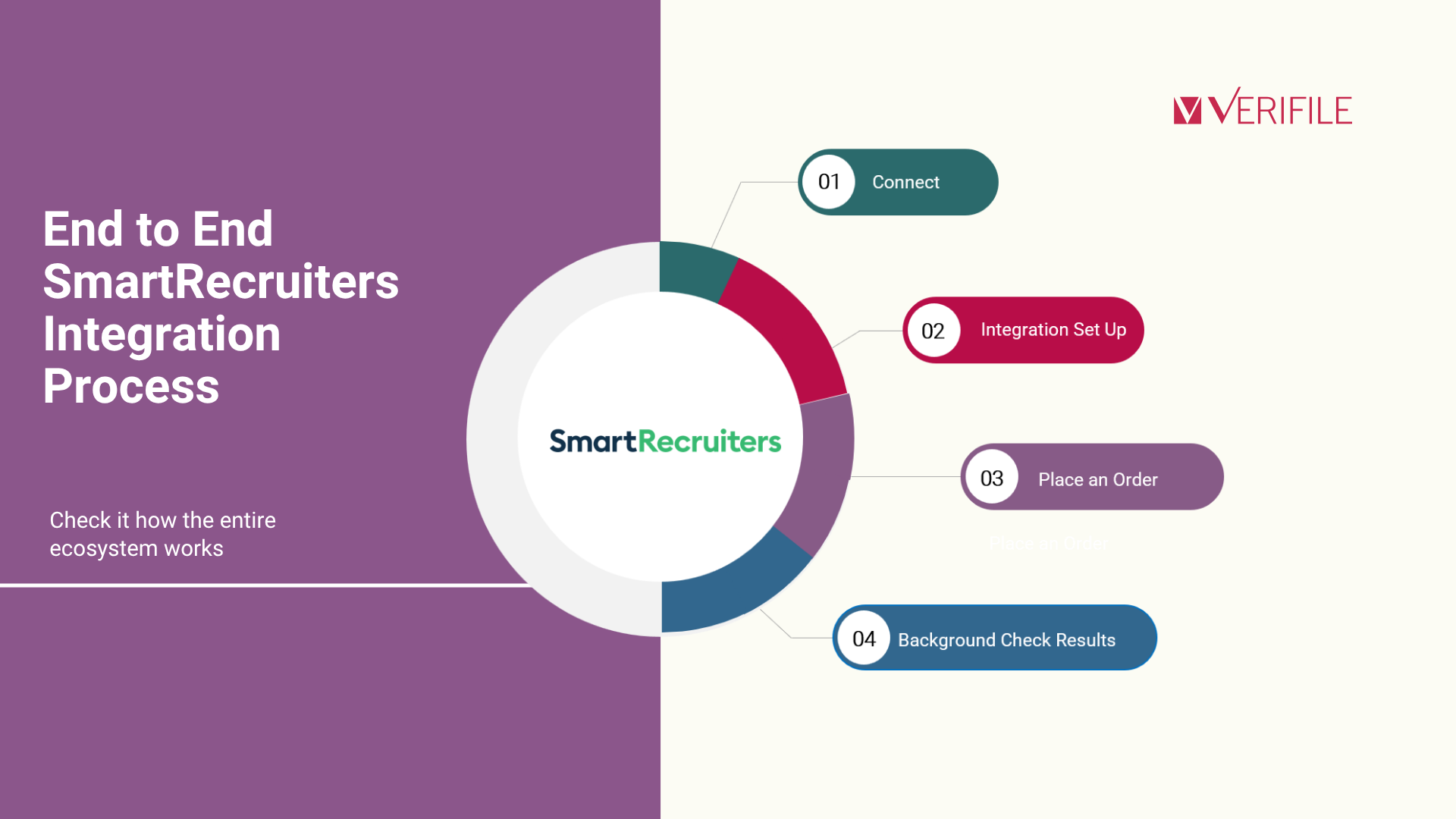
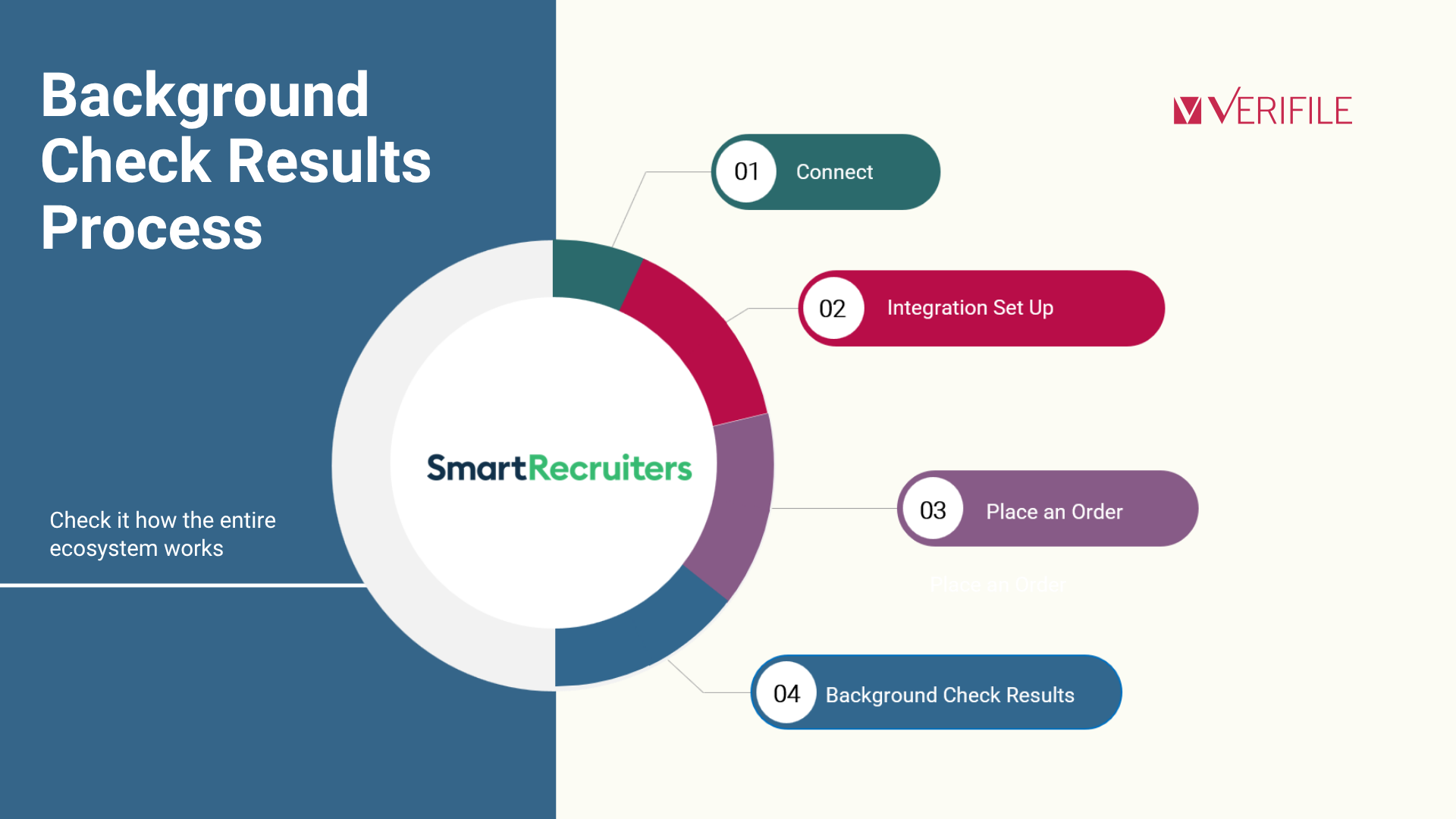
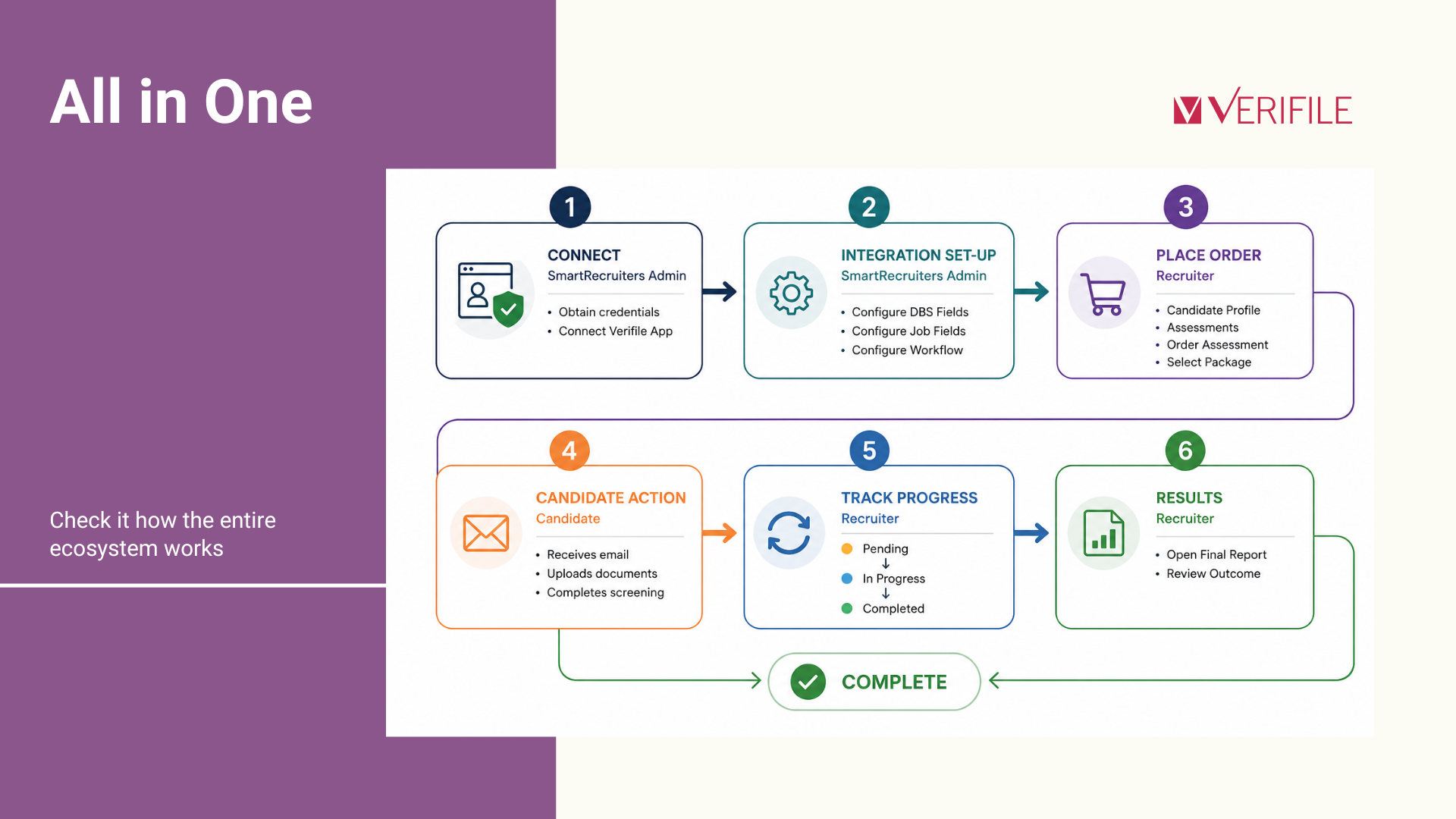
- Connect explains how to connect SmartRecruiters and Verifile, a process that is simple and can be completed in just a few steps, and is intended for SmartRecruiters Administrators.
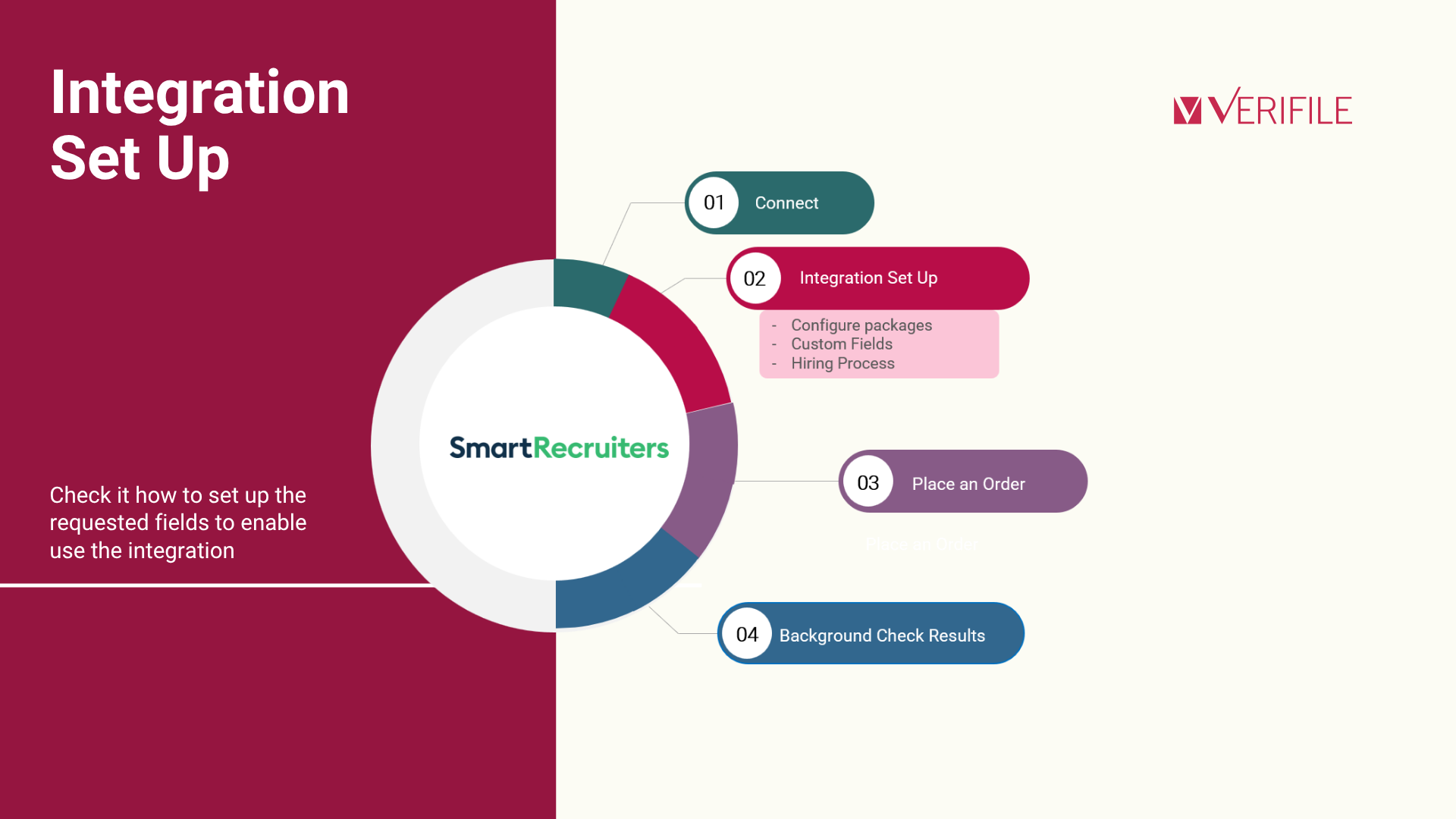
- Integration Set-up covers the configuration required to enable the integration, including the setup of custom fields and workflows; this section applies to both new and existing Verifile customers and is also aimed at SmartRecruiters Administrators.
- Place Order outlines the process of ordering background checks and tracking their progress as part of day-to-day recruitment activities, making it primarily relevant for recruiters responsible for ordering screenings.
- Background Check Results focuses on the end of the screening process, explaining how to access and review the final Verifile report within SmartRecruiters, and is intended for recruiters responsible for ordering screenings.
What can I do with this integration?
Functionality | Description |
Connect Verifile to SmartRecruiters | Link both systems using Verifile credentials. |
Request Background Checks | Order screening packages for candidates directly from SmartRecruiters. |
Select Screening Packages | Choose from the screening packages available to your organisation. |
Select Packages in Account levels | Ensure that each account can select their own package. |
Use Job Information | Automatically include job-related information in screening requests. |
Configure DBS Information | Set up required DBS-related fields for eligible screening packages. |
Define Screening Stages | Decide at which stage of the hiring process screenings should be requested, i.e. Apply Right to Work check before hiring process |
Track Progress | Monitor screening progress without leaving SmartRecruiters. |
View Individual Check Statuses | Review the status of checks included within a package. |
Access Final Reports | Open completed Verifile reports from the candidate profile without leaving SmartRecruiters. |
Manage Cost Allocation | Map Account Names and PO Numbers from Job information. |
How to connect
- If you use SSO to access Verifile domain, please send to support contact your username (composed by name and surname) and e-mail, then a password will be shared to your e-mail.
- If you are a new customer, we will create your credentials. Please share name and e-mail to support contact.
Activate the Verifile Integration in SmartRecruiters
Configure Required Custom Fields
Why this step is required
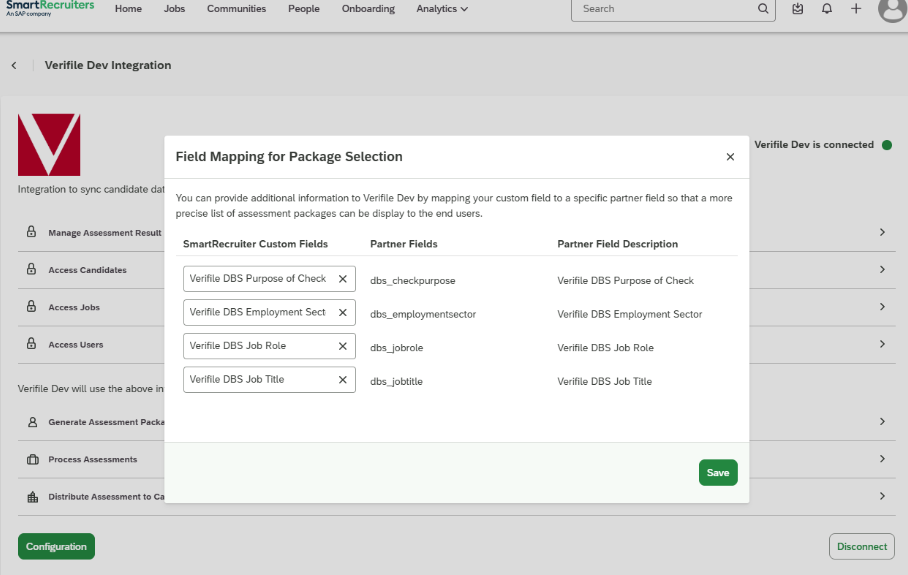
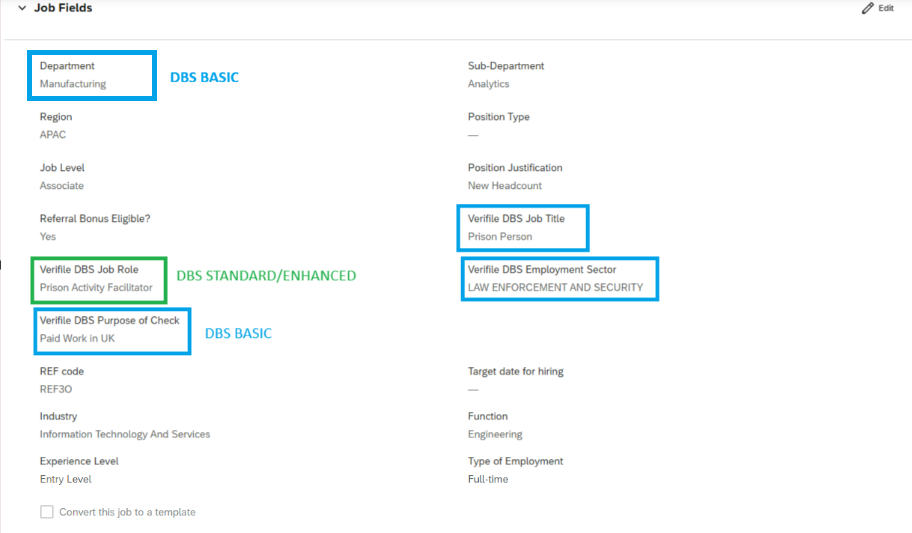
Custom Fields - Package selection
- Verifile DBS Purpose of Check, Verifile DBS Employment Sector and Department - required if a package you will order includes DBS check.
- Verifile DBS Job role and Verifile DBS Job Tittle - required to collect job position details.
DBS Check Type | Mandatory Field |
Basic |
|
Standard | Verifile DBS Job Role |
Enhanced | Verifile DBS Job Role |
Custom Fields - Hiring Process
Why this matters
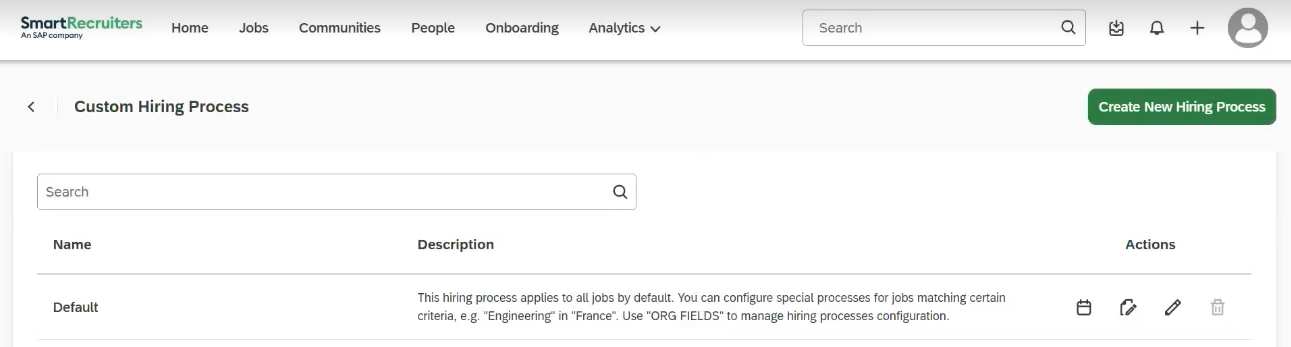
- Open: Configuration
- Scroll to: Hiring Process
- Create:
- Job-specific workflows
- OR a default workflow
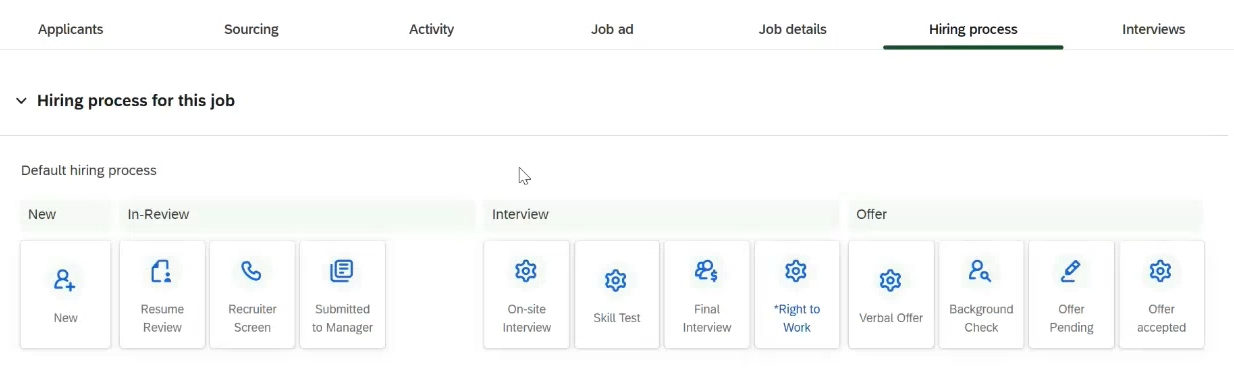
Organise Workflow Steps
- Go to: Jobs
- Open: Hiring Process
- Reorder the workflow stages as required
SmartRecruiters knowledge base includes helpful articles to assist with setting up the integration and using the SmartRecruiters platform. You can access the knowledge base here. Please note that an account is needed to access the SmartRecruiters platform.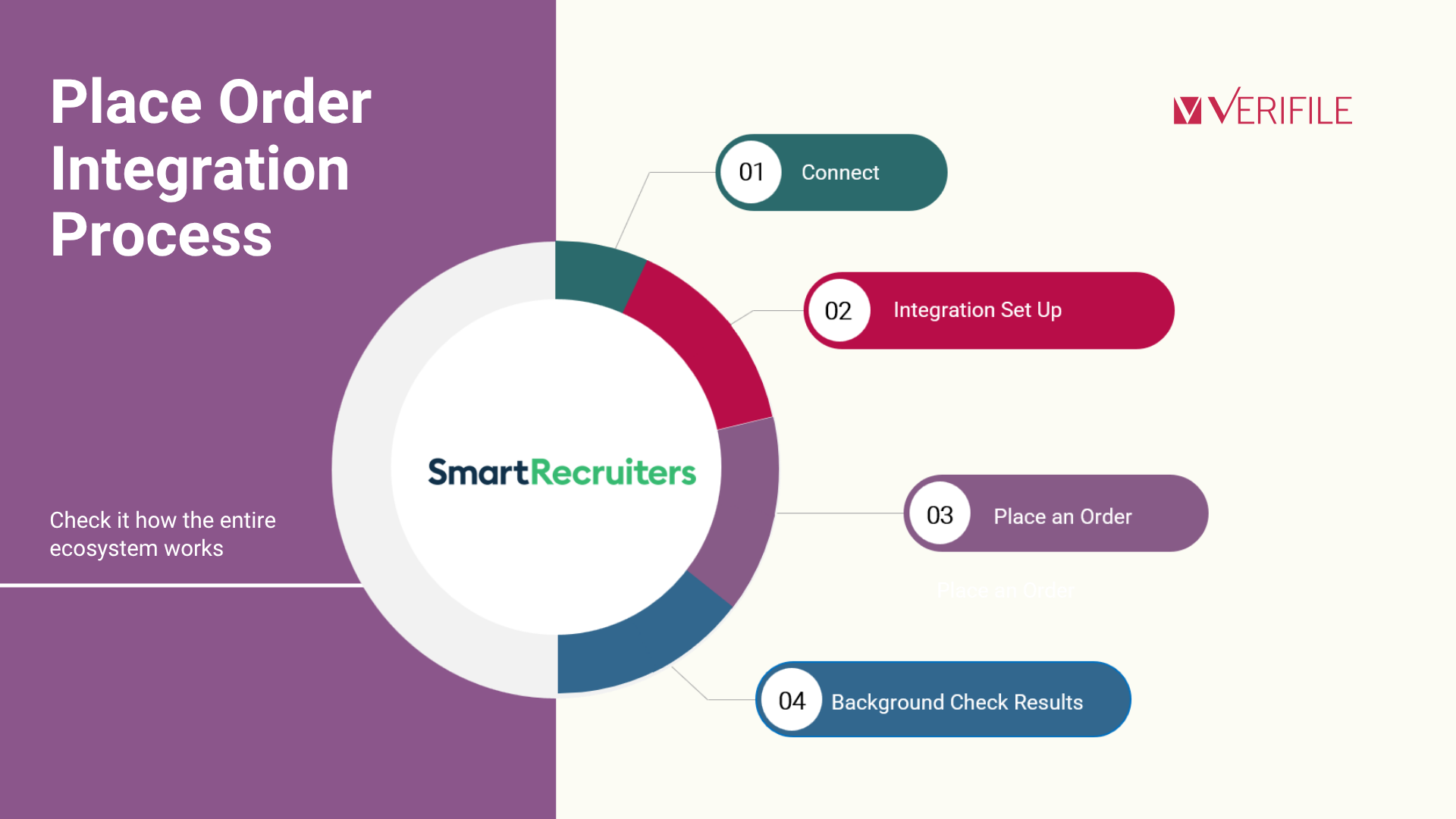
Place an order
Account name and PO number
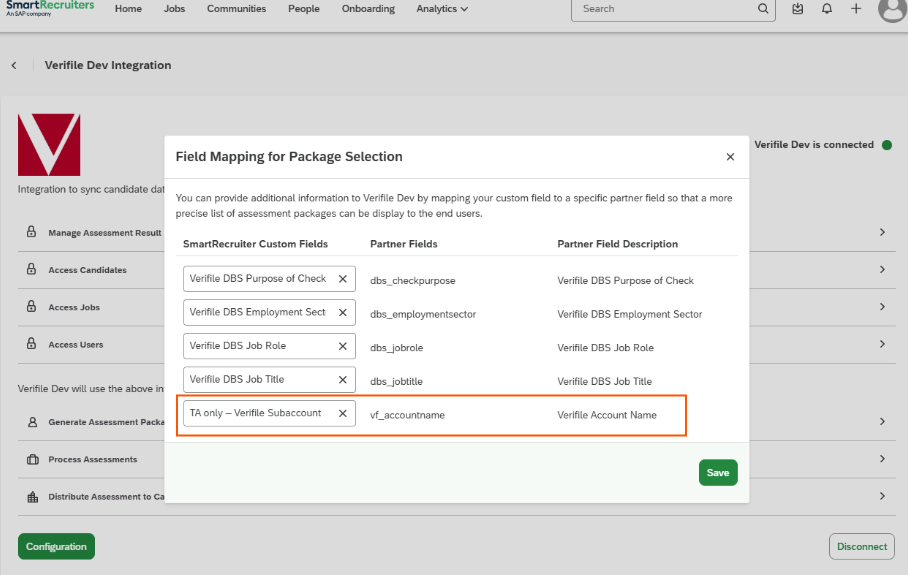
- Create or edit the Job in SmartRecruiters.
- Complete the Verifile Account Name and Cost Centre fields.
- Submit the background check as usual.
- Verifile automatically retrieves these values from the Job and maps them as follows:
- Verifile Account Name → Account Name
- Cost Centre → PO Number
Note: If the Verifile Account Name (in that example, named as Verifile Subaccount) or Cost Center (in that example, named as Cost Center 1) fields are left blank on the Job, the corresponding Account Name and PO Number values will not be available to Verifile during the screening request.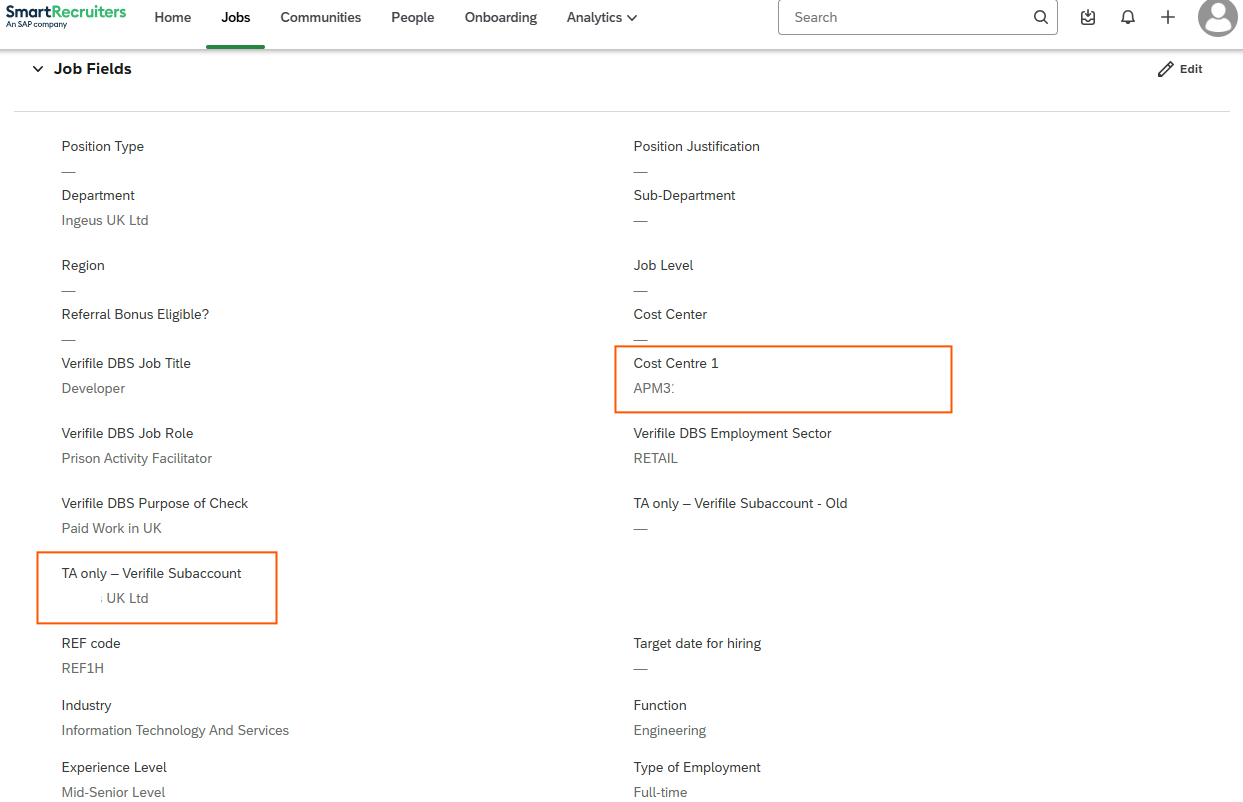
Please note that Job fields are customised components, and the wrong usability can block the correct function. Ask to your SmartRecruiters consultant the best ways to use it or access the knowledge base here. Please note that an account is needed to access the SmartRecruiters platform.What happens next?
- provide personal information;
- upload documentation if required;
- complete steps within the Verifile Candidate Portal.
Important: Inform candidates in advance that they will receive a Verifile email. This helps avoid delays.Tracking Progress
Status Mapping
SmartRecruiters | Verifile |
Pending | Awaiting Candidate Entry / Information Required |
In Progress | Processing / Quality Checking |
Completed | Completed |
Rejected / Expired | Cancelled |
Cancel Order
Background Check Results
All in One
What the Integration does not support
Functionality | Supported? |
Order in Bulk | No. Just individual orders are available. |
Edit a Submitted Screening Request | No. Once submitted, screening requests cannot be modified. |
Cancel a Submitted Screening Request | No. Submitted screening requests cannot be cancelled through the integration. |
Change Checks After Submission | No. Checks included in an order cannot be altered after submission. |
Complete Screening Within SmartRecruiters | No. Candidates must complete the process through the Verifile Candidate Portal. |
Run a Screening Without a Candidate Linked to a Job | Not documented or supported within the described workflow. |
View Final Results Before Completion | No. Users can track progress and statuses, but final results are only available once the screening is completed. |
Ongoing Support
Troubleshooting
I do not have an email and password to access SmartRecruiters
- If you use SSO to access Verifile domain, please send to support contact your username (composed by name and surname) and e-mail, then a password will be shared to your e-mail.
- Sent by service@verifile.co.uk
- Subject "Verifile Log In"
- If you are a new customer, we will create your credentials. Please share name and e-mail to support contact.
Package not visible
- Required custom fields were configured
- DBS fields are populated
DBS Check Type | Mandatory Field |
Basic |
|
Standard | Verifile DBS Job Role |
Enhanced | Verifile DBS Job Role |
- Ensure user permissions are correct: This is defined in your SmartRecruiters account
Candidate did not receive email
- Candidate email address
- Spam/junk folders
- Email delivery restrictions
SmartRecruiters knowledge base includes helpful articles to assist with setting up the integration and using the SmartRecruiters platform. You can access the knowledge base here. Please note that an account is needed to access the SmartRecruiters platform.Was this article helpful?
That’s Great!
Thank you for your feedback
Sorry! We couldn't be helpful
Thank you for your feedback
Feedback sent
We appreciate your effort and will try to fix the article